![VERSO_Logo-1.png]](https://helpdesk.verso.de/hs-fs/hubfs/Globale%20Design-Elemente/VERSO_Logo-1.png?height=50&name=VERSO_Logo-1.png)
With the “Copy report” function, you can easily transfer existing reports to the same or a new reporting period. This saves you time when creating reports while still keeping full control over content, tasks, and deadlines.
Where can I find the “Copy report” function?
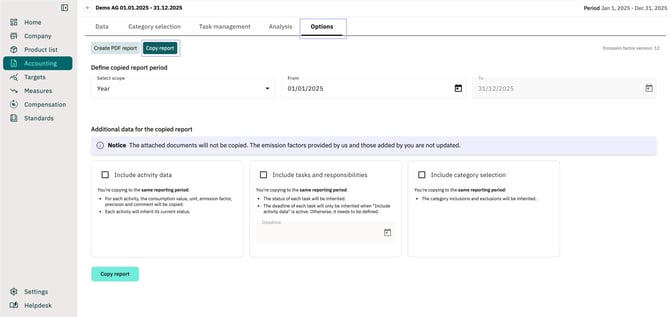
1. Open an existing report.
2. Switch to the Options tab.
3. Select the Copy report sub-tab.
Set the reporting period for the report copy
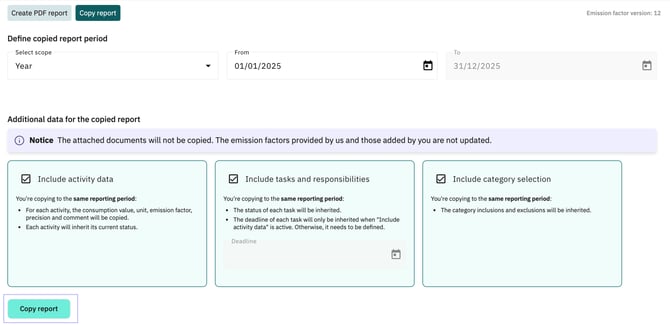
At the top of the page, you define the period for which the new report should be created. Using the “Select scope”dropdown, you can choose whether the new report should cover a month or a year. In the “From” field, you set the start date of the new report. The report’s end date is then automatically set based on your selection (month/year) and cannot be changed manually.
Copy activity data, tasks, and category selection
In the next step, you choose which elements from the original report should be transferred to the new report.
1. Include activity data:
The overview below shows which elements are copied when the “Include activity data” checkbox is enabled:
| Activity data | Are transferred | Are not transferred |
| Unit | Yes | Yes |
| Emission factors | Yes (without update to new year) | Yes (with update to new year) |
| Precision | Yes | No |
| Status | Same time period: Yes Different time period: Status is set to “Copied.” |
Will be reset to “Relevant.” |
| Net revenues | Yes | No |
| Base data | Yes | Yes |
| Documents | No | No |
The status “Copied” helps you quickly see which data has been transferred from the original report and still needs to be reviewed. All activities with this status also appear in the Processing status tab.
2. Include tasks and responsibilities:
Using the “Include tasks and responsibilities” checkbox, you can copy the tasks created in the original report. The following rules apply:
-
Copying within the same reporting year with activity data:
The tasks’ status and deadline are copied. -
All other cases:
The tasks’ deadline must be set manually. The selected deadline initially applies to all tasks and can then be adjusted individually in the new report. The task status is set to “Open”.
3. Include category selection:
Finally, you can also copy the category selection from the original report. To do so, enable the “Include category selection” checkbox. The new report will then contain the same category structure as the original report, including any categories that were previously excluded.
Finally, click “Copy report” to create the new report.