![VERSO_Logo-1.png]](https://helpdesk.verso.de/hs-fs/hubfs/Globale%20Design-Elemente/VERSO_Logo-1.png?height=50&name=VERSO_Logo-1.png)
In a CCF report, you assign an emission factor to each activity. In all scopes, you can use an existing factor from the Emission factors tab or create a new individual factor directly in the report. In Scope 3, you can also search the available databases for a factor, as before, either spend-based or activity-based.
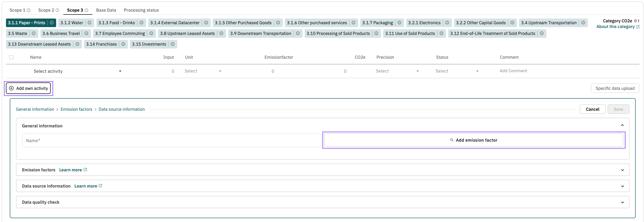
All methods start in the report under Data, in the relevant scope and category view, by clicking Add own activity.
| Method |
Scope |
When to use it |
What happens in the Emission factors tab |
|---|---|---|---|
| Use a factor from the Emission factors tab |
Scope 1, 2 and 3 |
The factor already exists, e.g. from a previous report. | Nothing changes. The factor is simply linked to the activity. |
| Create an individual factor directly in the report |
Scope 1, 2 and 3 |
The factor does not exist yet, and you want to create it both in the report and in the Emission factors tab. | The factor is saved as a new factor and is immediately active. |
| Search for an activity-based or spend-based factor |
Scope 3 only |
You want to use a factor from one of the available databases. | Nothing changes. Transferring these factors to the Emission factors tab is planned for the future. |
Using a factor from the Emission factors tab
-
In the relevant category, click Add own activity.
-
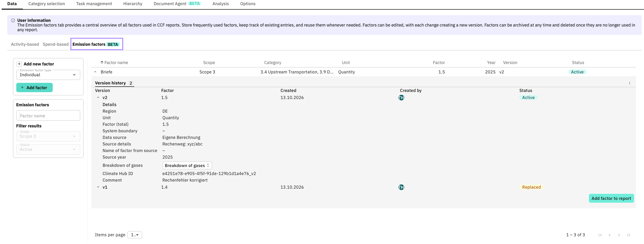
In the input form, click Add Emission Factor. The search opens with the Emission factors tab selected by default.
-
Search for the factor by name. The scope and status filters are already set appropriately: only active factors for the current scope are displayed.
-
Expand the factor by clicking the arrow at the beginning of the row to review its details and version history.
-
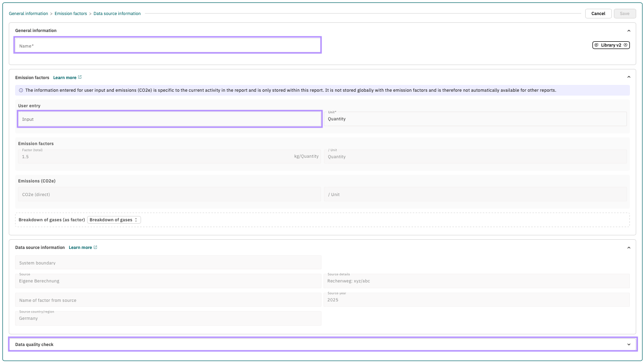
Click Add factor to report. The active version is added to the input form. After adding, the factor values and data source information are read-only. This ensures that the factor remains consistent across all reports. If the values need to change, create a new version in the Emission factors tab.
-
Enter an activity name, specify the input quantity and, if applicable, perform the data quality check.
Activity name vs. factor name: These two names serve different purposes and can be different:
-
Name of activity: The name of the activity in this report, e.g. “Letter Mailings – Munich Site”.
-
Factor name: The name of the factor in the Emission Factors tab, e.g. “Letters”. It should be general enough for you to find and reuse the factor in other reports.
-
-
Save the activity by clicking the checkmark in the top-right corner.
Creating an individual factor directly in the report
- In the relevant category, click Add own activity.
- Enter an activity name.
- Enter the input quantity and unit, the emission factor, and the data source information. Complete as many fields as possible to avoid having to create a new version later just to add missing information. In Scopes 1 and 2, you can also enter information for the energy balance (E1-5) directly.
- Click the checkmark in the top-right corner to save.
- The Factor Name dialog opens. Enter the name under which the factor should appear in the Emission factors tab, then click Save.
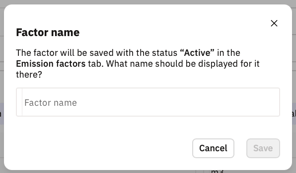
The factor is saved immediately in the Emission factors tab with the status active, without going through a draft stage. From that point on, you can also use it in other reports.
What is saved only in the report: Some details belong to the individual activity rather than the factor itself. They are saved only in the current report and are not transferred to the Emission Factors tab:
- The activity name
- The input quantity (activity amount)
- The emissions (CO₂e) entered directly
- The data quality check
A purple note in the input form reminds you of this distinction. If you use the same factor in another report, you must enter these details again.
Updating emission factors in a report
When you release a new version of a factor in the Emission factors tab, existing reports initially continue to use the previous version. You can check for newer versions directly in the report and decide which factors to update. When you update a factor, all activities using that factor are switched to the new version.
The report displays the following notice: “Check whether updated emission factors are available.” Next to it, "Last check" shows the date when factors were last checked for updates, or "Not yet checked".
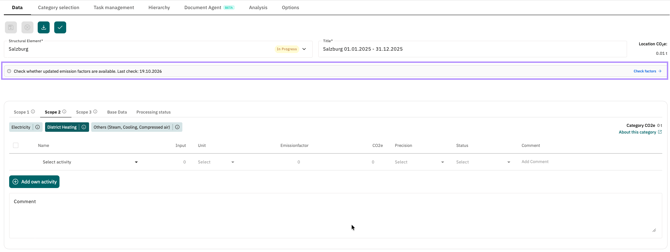
- Start the check using the notice in the report. All activities across all structural elements in the report are checked simultaneously.
- A dialog displays all factors for which a newer version is available (see “How to read the list” below).
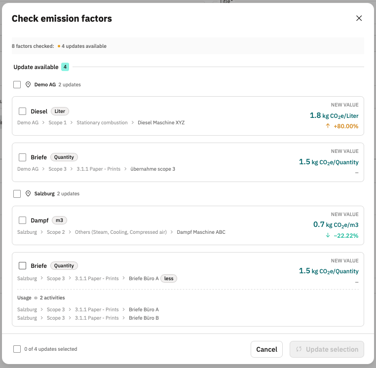
- Use the checkboxes to select the factors you want to update. The Update Selection button remains disabled until at least one factor is selected.
- Click Update Selection. All activities using the selected factors will now use the new versions, and the last-checked date will be updated.
Factors you do not select remain in the list. For example, if you update three out of five factors, only the remaining two will be displayed afterwards. You can update them later or deliberately keep using their previous versions.
How to read the list: Each entry displays the factor name from the Emission factors tab in bold. Below it, you can see the path to the activity in the report, e.g. Demo AG > Scope 3 > 3.1.1 Paper - Prints > Briefe Büro A (Letters Office A). This also makes it easy to identify cases where the same factor is used in multiple activities (e.g. Letters Office A and Office B). Updating a factor always applies to all activities using that factor, ensuring that they all use the same version. The percentage shown next to each entry indicates how much the factor value has changed.
|
Display |
Meaning |
Impact on the report |
|---|---|---|
| Orange, positive value | The new factor value is higher. | Emissions increase. |
| Green, negative value | The new factor value is lower. | Emissions decrease. |
| Grey hyphen | The factor value is unchanged; only other details, such as the data source, have changed. | Emissions remain unchanged. |
If everything is up to date: If no newer versions are available for any factor, the following message appears: “No newer versions are available – this report uses the latest values.”
Archived factors are not included in the check. Activities using archived factors continue to use their existing versions without changes.
Frequently asked questions
Why can't I change factor values after transferring a factor to the report? The factor is centrally stored in the Emission factors tab and may be used in multiple reports. To change its values, create a new version in that tab.
Why can't I find a factor in the search? Only active factors matching the activity's scope are displayed. Draft factors must be released first. Archived factors can no longer be assigned to new activities.
Can I use an older version of a factor? No. The active version is always used when transferring a factor to a report.