![VERSO_Logo-1.png]](https://helpdesk.verso.de/hs-fs/hubfs/Globale%20Design-Elemente/VERSO_Logo-1.png?height=50&name=VERSO_Logo-1.png)
Before you can start creating your PCF or LCA reports, you must first set up the company hierarchy in the Company tab and add the product to be assessed in the Product list tab. We have created a separate article for creating the company hierarchy, which you can find here.
Product list
All products that have already been created can be seen in the product list. A new product can be added using the Add product button in the top right-hand corner.
Adding a new product
A new page opens where you can enter the product name and, if available, a product code. Additionally, an optional product description can be maintained. In addition, an external item number and an EAN/GTIN code can be stored. The Scope field is currently greyed out and set to a single product. In the future, you will also be able to specify an overall assortment or a product line here.
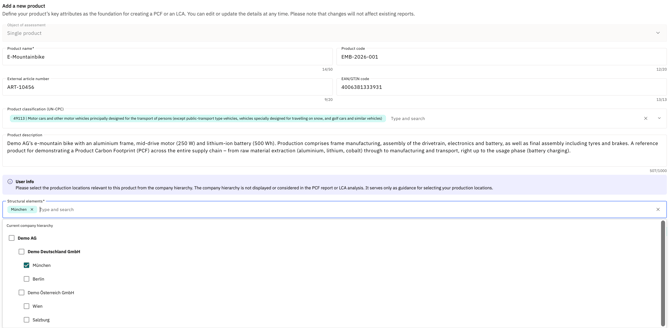
Product Classification (UN-CPC) You can optionally assign your product to a suitable category from the UN-CPC classification (Central Product Classification of the United Nations). To do this, enter a search term in the field and select the appropriate classification from the suggestions.
Product Description You can also optionally maintain a product description. This is used to describe the product in more detail and is automatically transferred to the basic data when creating a new PCF or LCA report.
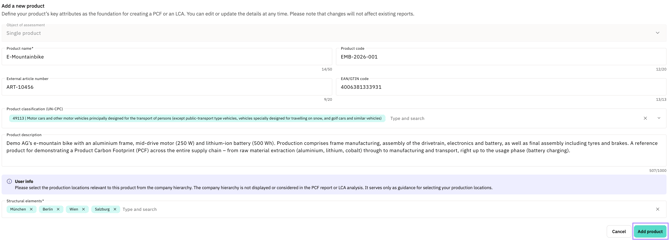
Structural Elements The search field Structural Elements is used to assign the relevant production sites to the product. Enter the name of the desired structural element and select it from the suggestions shown. This searches the company hierarchy set up in the Company tab. The selected sites are displayed as tags below the search field; you can remove a site at any time using the X icon on the respective tag, or delete all selected sites at once using the X icon on the right-hand edge of the field. The selected sites are automatically transferred to the PCF or LCA reports for this product.
Note: If you remove the link between a production site and a product, any PCF or LCA reports that have already been created will remain unaffected. The sites in reports that have already been created can be edited via the report's basic data.
Below the current company hierarchy, you can view the archived structural elements. These are structural elements that are no longer part of the company hierarchy in the Company tab, but are still assigned to one of your products or used in PCF or CCF reports. You can also select these structural elements to assign them to a product.
Clicking Add product creates the entry and adds it to the product list.
Editing, archiving, deleting products, or creating a report
Existing entries in the product list can be managed using the icons at the end of each product row:
-
The pencil icon lets you edit products. The same fields are available here as when creating a product
- The archive icon lets you archive products.
- The trash icon lets you delete products.
The Create New Report button lets you create a new PCF report for the respective product. The selected product and the report type Product Carbon Footprint (PCF) are pre-filled. You can also switch to Life Cycle Assessment (LCA) at any time here. This allows new reports to be created more quickly and with fewer manual entries.

Important notes
-
Changes made to a product do not affect reports that have already been generated.
-
Archived products remain visible in the ‘Archived’ tab and retain all existing reports unchanged. However, no new PCF or LCA reports can be generated for archived products. Archiving can be undone at any time.
-
Products with existing PCF or LCA reports cannot be deleted. Deletion is only possible for products without reports and cannot be undone – all product data will be permanently removed.