![VERSO_Logo-1.png]](https://helpdesk.verso.de/hs-fs/hubfs/Globale%20Design-Elemente/VERSO_Logo-1.png?height=50&name=VERSO_Logo-1.png)
In addition to manual entry in Climate Hub, activities can also be uploaded via CSV file. CSV upload is particularly useful when many activities need to be entered, updated or transferred to other (sub-)stages at the same time.
The upload is done in five steps:
1. Download the CSV template
2. Fill in the CSV template
3. Upload CSV file
4. Correct errors
5. Upload the corrected CSV file again
1. Download the CSV template
Download our CSV template, which already contains all existing activities for the selected (sub-)stage.
Here's how to proceed
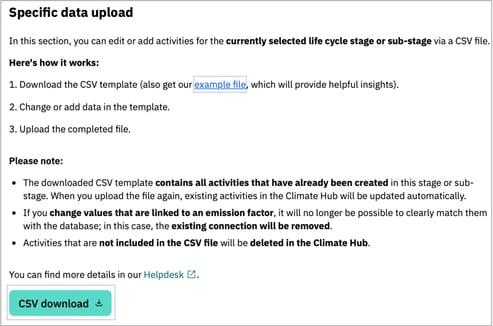
1. Open the Specific Data Upload in the desired (sub-)stage.
2. In the pop-up, click on CSV Download.
3. The CSV template will be downloaded automatically.
Optionally, you can also download a sample file in the same pop-up. This contains sample activities and serves as a guide for filling in the form.
Important to know
Activities already created in Climate Hub
-
Activities already existing in Climate Hub are included in the CSV file.
-
Entries changed in the CSV file are automatically updated during upload.
Deleting activities
-
If rows are deleted from the CSV file, the corresponding activities are also deleted from Climate Hub during upload.
-
Therefore, only delete entries that you no longer need.
Changes to database-based emission factors
If you modify information about a database-based emission factor, it will no longer be possible to clearly assign it to the database. In this case, the link to the database will be automatically removed. This applies to changes made to the following columns:
-
Factor excl. biogenic CO2 uptake
-
Factor (biogen)
-
Emission factor unit
-
Type of source
-
Source name
-
Source details
-
Name of factor from source
-
System boundary
-
ISO country code
-
Source year
Emission factors from the ecoinvent database:
-
Emission factors from the ecoinvent database may not be displayed for licensing reasons.
-
Therefore, the Factor excl. biogenic CO2 uptake and Emission factor unit columns remain empty when downloading.
-
You can search for the factor directly in the database using the Name of the source.
2. Fill in the CSV template
Once you have downloaded the file, you can start entering the data. The template contains 22 columns. Only the Name column is mandatory and must be filled in for each activity.
To avoid errors during upload, please use the following overview as a guide when filling out the CSV file.
Column overview
Columns for activity data
Name* (mandatory field, max. 100 characters)Enter the name of the activity (e.g. a material, a process, a product, a service, or another relevant emission driver). Please note that the name must be unique and must not occur more than once.
Identification number (optional, max. 30 characters)
If the material, process, product, service or activity has a unique identification number internally or externally, it can be entered here.
Value (optional, only numeric values)
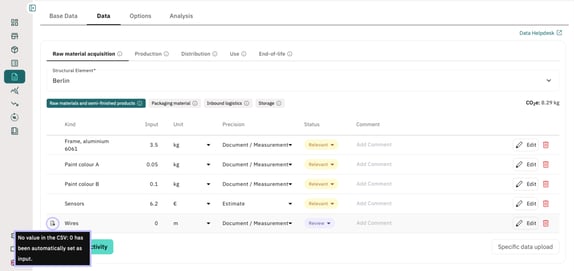
Enter the consumption or quantity of the activity here. If no value is entered, the system automatically sets the value to 0 during upload. This is indicated by a grey icon showing a document and an exclamation mark. The correct value can be added manually via the system at any time later.
Unit (optional, predefined answer options)
Enter the corresponding unit for your activity here. Only use one of the following options:
| Unit category | Answer options |
| Energy | Wh, KWh, MWh, GWh, MJ, GJ, TJ |
| Weight | g, kg, t, short-ton, lb |
| Freight transport | tkm, tmi, short-ton-mi |
| Passenger transport | pkm, pmi |
| Container transport | TEU-m, TEU-km, TEU-ft, TEU-mi, TEU-nmi |
| Distance | m, km, ft, mi, nmi |
| Volume | ml, Liter, m3, gal, bbl, scf |
| Area | m2, km2, ft2, ha |
| Currency | €, $ |
| Time | second, minute, hour, year |
| Miscellaneous | Nights, Quantity, %, Megabit.s |
Note: Rules on unit and emission factors
-
The selected unit must be from the same category as the unit of the emission factor. Example: If the value is given in kilograms, the emission factor must be from the weight category.
- The exact same unit must be used as for the emission factor unit. Example: If the value is given as a number, the emission factor unit must also be a number.
- If the unit and emission factor unit are empty, both are automatically preset with m3. In this case, a grey icon depicting a document and an exclamation mark appears at the beginning of the activity line. The correct unit can be added manually later via the system.
Quality (optional, predefined answer options)
Indicates how well the activity data reflects the real-world situation – assessed based on temporal representativeness (recency of the data) and technological representativeness (alignment with the actual process). The value is used for the calculation of the primary data share and the data quality rating. The following quality levels are available:
| Rating level | Description |
| Very good | Both dimensions very good |
| Good | Both dimensions good or better |
| Fair | Both dimensions fair or better |
| Poor | At least one dimension poor |
| Very poor | At least one dimension very poor |
Please indicate here how far you are in the data collection process. You can choose one of the following answers:
- Not Relevant
- Relevant
- Review
- Done
Columns for emission factors
Factor excl. biogenic CO2 uptake (optional, only numeric values)This column contains the main emission factor of the activity – previously referred to as factor (total). The factor includes fossil emissions (e.g. from energy and transport), biogenic non-CO₂ emissions (e.g. biogenic methane) and land use change. Not included is the biogenic CO₂ uptake from biomass. For more information on the four emission factors that can be entered in the Climate Hub, please refer to this article.
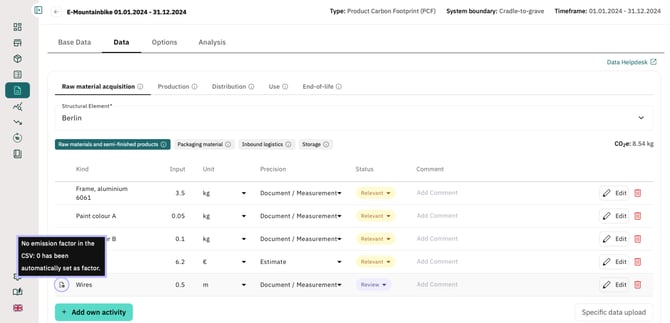
f no entry has been made and no automatic search for emission factors has been performed via the Smart Emission Factor Module, a zero will be automatically stored during upload. This will be indicated by a grey icon depicting a document and an exclamation mark. The correct value can be added manually later via the system.
If a Product Carbon Footprint (PCF) from a supplier is available, it can also be entered directly in this column. Please note that the supplier's PCF must be adjusted to your declared / functional unit.
Factor (biogenic) (optional, only numerical values)
This column is used to enter the biogenic component of the emission factor. If available, the biogenic share of a supplier PCF can also be entered here. Please note that your supplier's PCF must be adjusted to your declared/functional unit.
Corresponds to the unit to which the emission factor refers. Only use one of the following options:
| Unit category | Answer options |
| Energy | Wh, KWh, MWh, GWh, MJ, GJ, TJ |
| Weight | g, kg, t, short-ton, lb |
| Freight transport | tkm, tmi, short-ton-mi |
| Passenger transport | pkm, pmi |
| Container transport | TEU-m, TEU-km, TEU-ft, TEU-mi, TEU-nmi |
| Distance | m, km, ft, mi, nmi |
| Volume | ml, Liter, m3, gal, bbl, scf |
| Area | m2, km2, ft2, ha |
| Currency | €, $ |
| Time | second, minute, hour, year |
| Miscellaneous | Nights, Quantity, %, Megabit.s |
This column is automatically filled in by Climate Hub when downloading the CSV file. It is used to indicate whether the emission factor was defined by you or originates from the VERSO database. The VERSO database includes factors obtained via climatiq or ecoinvent, as well as our predefined factors.
In the Type of source column, you can specify where your emission factor comes from, e.g. from a database, study or calculation, or from a supplier. In the Source name column, you then enter the specific name of the source, such as a database (e.g. DEFRA, WRAP, EXIOBASE), the title of the study or the name of your supplier.
The original name of the emission factor from the database is specified here. For the activity ‘Aluminium frame’, this could be ‘Aluminium General’ from the Circular Ecology database, for example. Specifying the original name is intended to help you and your auditors find the emission factors used more easily.
System boundary (optional, predefined answer options):
Enter the system boundary for the activity here. It defines which part of the products life cycle the emission factor covers. Only use one of the following options:
| biogenic_co2_combustion | Biogenic CO2 emissions from the combustion of biofuels. |
| cradle_to_farm_gate | Emissions from all activities associated with production to the point they leave the farm. |
| cradle_to_gate | Emissions from all activities associated with the manufacturing of a good and its inputs up to the factory gate. |
| cradle_to_grave | All upstream, use and downstream activities. |
| cradle_to_processing_gate | Emissions from all activities associated with production to the point they leave the farm plus further processing. |
| cradle_to_shelf | Emissions from all activities associated with production and transportation to the point of sale on a shop shelf. |
| direct | The manufacturing of a good and its precursors. |
| end_of_life | Disposal, recycling or other treatment of the good at the end of its life. |
| electricity_generation | Generation of electricity (fuel combustion). |
| fuel_combustion | The combustion of fuel. |
| gate_to_grave | Disposal, recycling or other treatment of the good at the end of its life including transportation to point of disposal. |
| indirect | Electricity used in the manufacturing of a good (and its precursors). |
| tank_to_wheel | Fuel combustion (in a vehicle). |
| total | The sum of direct and indirect emissions. |
| transmission_and_distribution | The generation of electricity that is lost through transmission and distribution. Also applies to losses of heat, steam and gases. |
| upstream | Mining or production of primary / raw materials / fuels. |
| upstream-electricity_generation | For electricity factors, this corresponds to the sum of the system boundaries electricity_generation, well_to_tank, transmission_and_distribution, and well_to_tank- transmission_and_distribution. |
| use_phase | Use-phase emissions such as emissions associated with driving a vehicle, district heating, or CPU use in a data center. |
| well_to_propeller | Combustion plus extraction and refining and transportation of primary fuels before their use. |
| well_to_tank | Extraction and refining and transportation of primary fuels before their use. |
| well_to_tank- transmission_and_distribution |
Upstream (well to tank) from extraction and refining and |
| well_to_wheel | Equal to well_to_tank plus tank_to_wheel. Extraction and refining of primary fuels, transportation, and final combustion in a vehicle. |
The ISO country code refers to the country from which the material is supplied or the activity is sourced. Even if the column is not validated, it is recommended to enter a two-digit ISO country code based on the ISO 3166-1 standard. This ensures consistent documentation and enables a higher hit rate for automated emission factor suggestions via the Smart Emission Factor module.
Source year (optional, max. 4 characters):
In this column, you can enter the calendar year of the underlying source, e.g. the year of the database used. If it is a supplier PCF, please enter the starting year of the reference period.
The primary data share describes the data quality of an emission factor or supplier PCF. The primary data share indicates the proportion of primary consumption data and emission factors compared to estimated and secondary data. If no primary data share has been specified, a value of 0% must be assumed.
This column can be used to indicate whether the emission factor or supplier PCF has been verified and whether this verification was carried out internally or externally. Only use one of the following options when making your selection:
- No assurance or verification
- Internal verification
- Third party assurance or verification
Columns for supplier information
City of supplier (optional, max. 30 characters):
In this column, you can enter the city of the supplier from which the material was delivered or the activity was sourced.
Postcode of supplier (optional, max. 15 characters):
Here, you enter the postcode that belongs to the supplier's city specified above.
Comments
Comment (optional, max. 1500 characters)You can add additional information here.
Example of a completed CSV file
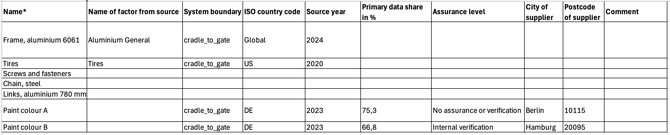
The following figure shows an example of a completed CSV file for the sub-stage Raw materials and semi-finished products. The activities listed were entered manually by the customer. For this reason, the VERSO factor column is not filled in.
- Frame, aluminium 6061: An activity-based emission factor (13.05 kg/kg) from the Circular Ecology database was entered. The corresponding value is also from the unit category weight (3.5 kg).
- Tires: A spend-based emission factor (0.44 €/kg) from the OpenIO-Canada database was used. The corresponding value is also stated in € (6.2 €).
- Screws and fasteners; Chain, Steel; Links, aluminium 780 mm: No emission factor has been entered yet. During upload, the activity is therefore assigned an emission factor of zero. The factor can be added later via the system.
- Paint colour A: This is a PCF from a supplier, which is entered in the emission factor (fossil) and emission factor unit columns (2.3 kg/kg). The purchased quantity of the material is entered in the value and unit columns (0.05 kg).
- Paint colour B: This is also a PCF supplied by another supplier. Since no two entries with the same name can exist in the same sub-stage, the two entries must differ in their names: Paint colour A and Paint colour B.

3. Upload CSV file
The completed CSV file is checked for errors and then transferred to the Climate Hub.
Here's how to proceed
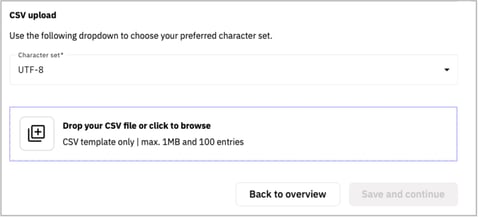
1. Reopen the Specific Data Upload.
2. Select the appropriate character set.
3. Upload the file using Browse or drag and drop.
Important for Excel users
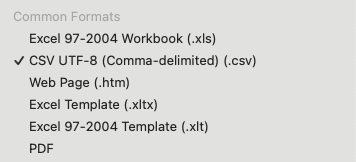
Ensure that the file is saved as CSV UTF-8:
-
Click on File > Save As.
-
Select CSV UTF-8 as the file format.
After the upload
-
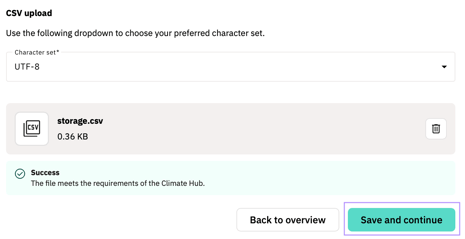
The file is displayed in the pop-up window.
-
Click Save and Continue to transfer the data to Climate Hub.
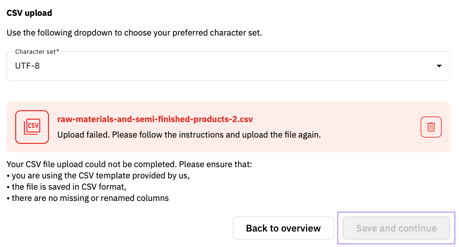
If an error occurred during the upload, a red error message will appear. The Save and Continue button will remain disabled until the errors have been corrected.
Automatic data synchronisation
After uploading, the data is automatically transferred to the Climate Hub:
- Existing activities are updated if data has changed.
- Newly added activities are transferred to the Climate Hub.
- Activities deleted from the CSV file are deleted in the Climate Hub.
Caution: Overwriting and assigning activities
When uploading CSV files, the most recently uploaded CSV file is always considered valid. Ensure that it contains all relevant activities.
Assignment is based solely on the name of the activity. If the name is changed, the activity can no longer be assigned.
Important note on data usage
Not all uploaded information is immediately visible in the Climate Hub. However, the data is stored in the background and will be automatically available as soon as the corresponding functions are activated.
Tip: Fill in all available fields now – this will save you having to manually update them later.
Upload CSV file to other (sub-)stage
The CSV file can also be uploaded to a different (sub-)category than the one from which it was originally downloaded. This allows you to flexibly transfer activities that have already been created without having to re-enter them manually.
Note: Database and ecoinvent emission factors
When uploading activities from the VERSO database, the database reference is not transferred. You can then find the factor manually via source and year.
Activities with emission factors from ecoinvent must be manually assigned an emission factor when transferred to another (sub-)stage. Otherwise, an emission factor of 0 will be automatically stored.
4. Correct errors
The system checks the CSV file for format and content errors.
Common types of errors
-
Incorrect CSV template
-
CSV template saved in a different format (e.g. Excel)
-
Additional or renamed columns
-
Content validation errors
Please correct the errors in the CSV file.
5. Upload the corrected CSV file again
After making the corrections, upload the CSV file again. The system will check the file again and accept it as soon as there are no more errors.
Here's how to proceed
1. Reopen the Specific Data Upload.
2. Upload the corrected CSV file.
3. Click Save and Continue once no more error messages are displayed.