![VERSO_Logo-1.png]](https://helpdesk.verso.de/hs-fs/hubfs/Globale%20Design-Elemente/VERSO_Logo-1.png?height=50&name=VERSO_Logo-1.png)
TABLE OF CONTENT
-
I. Overview
II. Prerequisites
III. Creating evidence documentation
IV. Downloading the PDFs
V. Re-issuing documentation
I. Overview
Once all packaging components have been assessed and marked as Complete, a manufacturer can issue compliance documentation directly from the Supply Chain Hub. The platform generates two documents automatically: a Declaration of Conformity (DoC) and Technical Documentation (TechDoc), each available in English and German.
Evidence documentation is only available for packaging units with the role Manufacturer or Supplier.
II. Prerequisites
Before you can issue evidence documentation, the following conditions must all be met:
- All components assigned to the packaging unit must have the status Complete, which means that all sustainability data must be provided by you or your suppliers.
- No component may have outstanding sustainability issues (heavy metals or PFAS non-compliance)
- The packaging unit must have the role Manufacturer or Supplier
The Evidence tab on the packaging unit detail page shows a warning banner if any of these conditions are not met.
III. Creating evidence documentation
There are two ways to create evidence documentation: one by one from the packaging unit detail page, or in bulk from the packaging list.
Creating evidence for a single packaging unit:
Navigate to PPWR → Packaging Units and open the packaging unit. Select the Evidence tab, then click Create evidence.
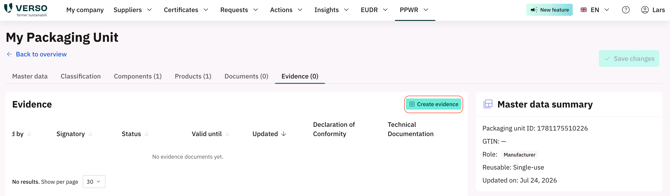
The creation flow has three steps:
Step 1 — Details Select the manufacturing facility and the signatory (the person who signs the declaration). The facility address is filled in automatically. You can adjust the signatory's function title, set a validity date, and add any additional remarks. When creating evidence documentation (both single and bulk), you can enable an optional Hide attachment names setting. When enabled, the generated Technical Documentation PDF omits the actual filenames of supporting attachments and instead shows only a count of attached files. This is useful when you don't want a downstream party — such as a customer receiving the Technical Documentation — to see your suppliers' document names.
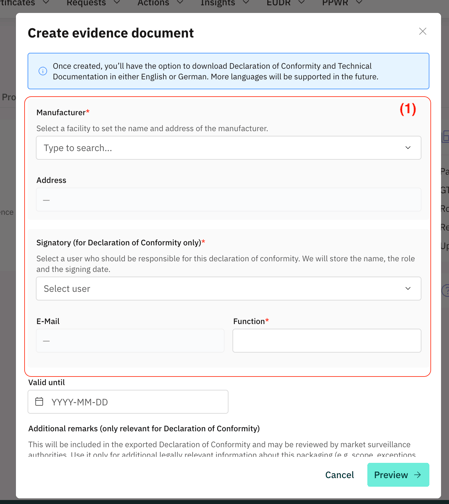
Step 2 — Declaration of Conformity preview Review the DoC before it is generated.
Step 3 — Technical Documentation preview Review the TechDoc. Once satisfied, click Create evidence to generate all four PDF files.
Creating evidence in bulk
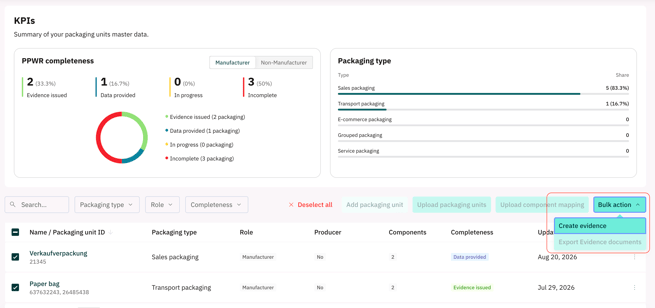
To create evidence for multiple packaging units at once, navigate to PPWR → Packaging units. Select the packaging units you want to process, then choose Bulk action → Create evidence. You can include up to 200 packaging units in a single batch. The platform creates the Technical Documentation and Declaration of Conformity for each selected unit.
IV. Downloading the PDFs
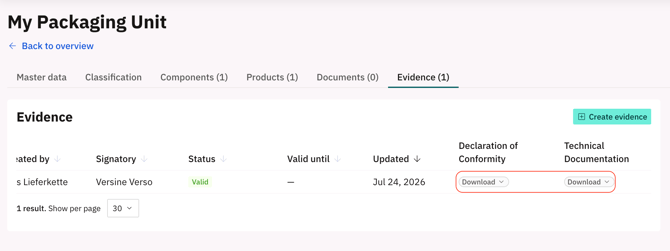
After creation, the Evidence tab lists the document with download options. Click the download dropdown on the Declaration of Conformity or Technical Documentation column to download the English or German version.
Bulk download
To download PDFs for multiple packaging units at once, go to PPWR → Packaging units and select up to 200 packaging units from the list. Use the bulk action to download a ZIP file containing the declaration of conformity and technical documentation PDFs for all selected units.
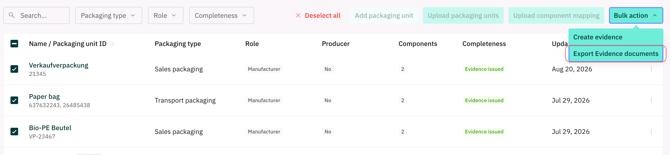
An optional language filter lets you choose English, German, or both. If no language is selected, all PDF variants are included in the ZIP file.
V. Re-issuing documentation
If you need to update the evidence — for example after a supplier provides revised component data — you can create new documentation at any time. The previous document is automatically archived when a new one is issued. Only one document can be active at a time.
A renewal notice appears on the Evidence tab if any component sustainability data has changed since the documentation was issued.
VI. Deleting documentation
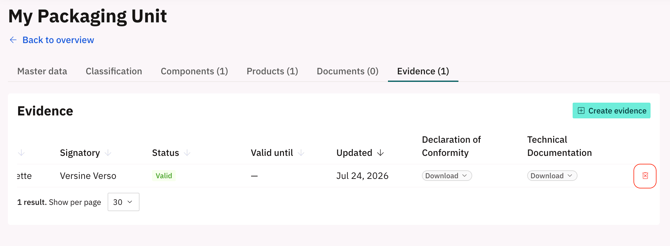
To permanently delete the active evidence documentation, click the delete icon on the document row and confirm. Note that this action is irreversible. The packaging unit's status will return to Data Provided after deletion.
Deleting the packaging unit itself also permanently deletes all associated evidence documentation.