![VERSO_Logo-1.png]](https://helpdesk.verso.de/hs-fs/hubfs/Globale%20Design-Elemente/VERSO_Logo-1.png?height=50&name=VERSO_Logo-1.png)
Uploading outbound transactions
Outbound transactions capture planned or actual sales activities and are used to create your own outbound DDS (Due Diligence Statements).
By creating outbound transactions, you can also assign the corresponding inbound DDS from your suppliers.
-
Click “EUDR” in the main menu (1).
-
Select “Transactions” (2).
-
Select “Outbound Transactions” (3).
-
Click “Upload Transactions” in the upper right corner (4).

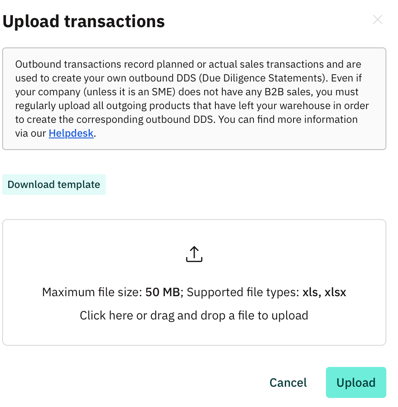
- Click on “Download template”
Fill in the template:
-
Column A: Select the Outbound Transaction ID. This is a unique identifier for the outbound transaction.
-
Column B: Enter the Outbound Product ID of the product included in the outbound transaction.
If you want to include multiple products in one transaction, add a separate row for each product using the same transaction ID. -
Column C: Enter the quantity of the outbound product.
-
Column D: Enter the unit for the product. You can choose between kg, m3, or pieces.
-
Column E: Select “yes” if it is a planned/future transaction. Leave the field empty if it is an actual transaction.
-
Column F: Enter an optional comment for the transaction.

-
On the second worksheet “READ ME”, you will find additional explanations for each column you need to fill in.

-
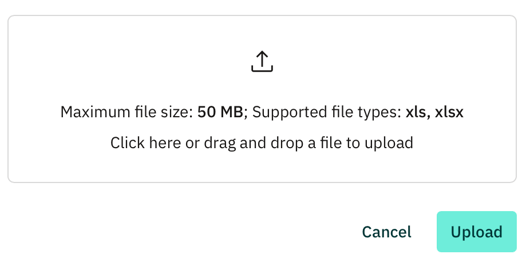
Upload the completed document and click “Upload.”