![VERSO_Logo-1.png]](https://helpdesk.verso.de/hs-fs/hubfs/Globale%20Design-Elemente/VERSO_Logo-1.png?height=50&name=VERSO_Logo-1.png)
TABLE OF CONTENT
- I. What is rolling window heuristic?
- II. How to set the Time Frame for a Rolling Window
- III. Process of DDS Referencing
I. What is rolling window heuristic?
The Rolling-Window Heuristic is a simple method to create EUDR-compliant Due Diligence Statements (DDS) without requiring complete batch traceability.
It helps companies fulfill their due diligence obligations in a pragmatic and efficient way.
How the Rolling-Window Heuristic Works
For each outbound product, a specific time window is defined. This “Rolling Window” determines which supplier DDS are referenced for the creation of the company’s own outbound DDS.
The starting point of the window is the moment when an outbound transaction is triggered. Within this window, all relevant supplier DDS from previous inbound deliveries are taken into account.
Example: Rolling Window = 2 Months
- Inbound Deliveries:
In January and February, several batches from suppliers are received and stored in the warehouse. Each of these batches comes with its own supplier DDS. - Outbound Sale:
At the beginning of March, a product from the warehouse is sold. - Automatic Aggregation:
The system looks back over the previous two months and collects all supplier DDS from the inbound batches received in January and February. - Result:
All relevant supplier DDS from this period are combined and referenced in a new outbound DDS.
II. How to set the Time Frame for a Rolling Window
When adding your outbound products:
- Single Upload: Select EUDR > Products > Outbound products > Add product.
In the input form, enter the desired number of days for the time frame under Rolling Window timeframe. Tip: The time frame should not exceed one year (365 days). - Bulk upload: Use the Excel bulk upload under EUDR > Products > Outbound Products > Upload Products and define the desired days for the time frame in the “Rolling Window timeframe” column. Tip: The time frame should not exceed one year (365 days).
- For general information on adding outbound products, please refer to the section Adding Outbound Products.
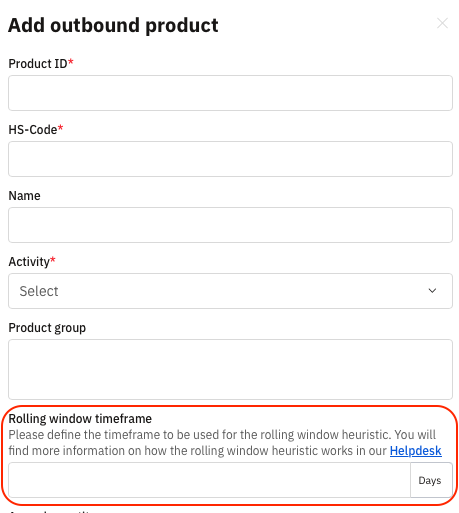
For Already Created Outbound Products:
- Select EUDR > Products > Outbound Products.
- Click the edit icon (pencil) next to the outbound product you want to modify.
- In the input form, enter the desired number of days for the time frame under Rolling Window timeframe. Tip: The time frame should not exceed one year (365 days).

III. Process of DDS Referencing
To apply the Rolling-Window Heuristic in the system, a product mapping must first be created. For more information on product mapping, please refer to the section Product Mapping.
- Creating an Outbound Transaction: Once you create an outbound transaction for a product with a defined Rolling Window, the system automatically applies the Rolling-Window Heuristic for that product. The starting point of the window is the date on which the outbound transaction was created in the Supply Chain Hub. For more information, see Outbound transactions.
- Creating the Outbound DDS: Go to EUDR > Transactions > Outbound Transactions.
Click Create DDS for the respective transaction. In the future, it will be possible to automatically generate DDS. For more information, see Outbound DDS Creation. - Viewing and Exporting Outbound DDS: All created Outbound DDS can be found and exported under: EUDR > Own DDS > Outbound DDS.