![VERSO_Logo-1.png]](https://helpdesk.verso.de/hs-fs/hubfs/Globale%20Design-Elemente/VERSO_Logo-1.png?height=50&name=VERSO_Logo-1.png)
In the Base Data tab, all report-relevant information required to create a complete or partial PCF report is captured.
The section is divided into three sub-tabs:
- General Information
- Report Configuration
- Allocation
Allocation forms the third sub-tab of Base Data. Due to its scope, it is described in a separate article: Allocation.
Some fields are standard-dependent and are predetermined or restricted by the activated standard. To see which fields this applies to when Catena-X or PACT is activated, see Behavior when Catena-X, PACT or TfS is activated.
1. General information
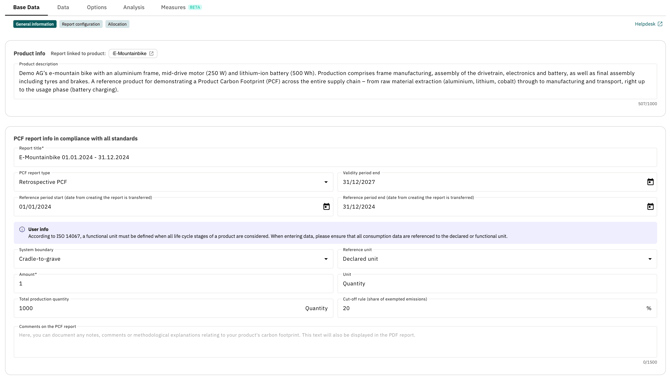
Product description
To calculate the PCF, a concise product description is first recorded that clearly identifies the product under consideration. This description is also output in the final PDF report.
If a product description has already been maintained in the product list, it is automatically transferred when creating a new PCF report. The description can be adjusted within the report if needed. Changes to the product description in the PCF report do not affect the product description in the product list or in other PCF reports.
Report title
The title identifies the PCF report in the report overview and in the PDF report. By default, it consists of the product name and the reporting period. This name can be customized by the user.
PCF report type
Defines the time reference of the PCF. Selection is made via a dropdown with the following options:
- Retrospective PCF: The PCF is based on data from a completed, past reference period. It reflects the actual footprint of an already-produced product and relies on measured or primarily collected actual data.
- Prospective PCF without forerunner: A forward-looking estimate for a new product that is not yet in series production and for which no predecessor product exists as a data basis. The estimate is based on the current development status and production planning.
- Prospective PCF of further-developed product with forerunner: A forward-looking estimate for a new or further-developed product for which a predecessor product exists. The estimate uses the predecessor's data as a starting point and adjusts it for the changes in the further-developed product.
- Prospective PCF for current product for future production date: A forward-looking projection for an already existing product to a future production date. Expected changes are taken into account, e.g. in energy mix, material sourcing, purchased parts sourcing, technology, or tooling.
- Progressive PCF: Combines prospective estimates with continuously incoming actual data. The PCF starts on the basis of projections and is progressively replaced or updated over time with real primary data as production ramps up.
Validity Period (End)
Indicates until when the PCF report is considered valid.
Reference Period (Start and End)
The reference period is set when the report is created and carried over into the Base Data. It can be adjusted here at any time.
Selection of the System Boundary
A choice can be made between different assessment perspectives:
- Cradle-to-gate: Only the raw material acquisition and production phases up to leaving the factory gate are considered. Distribution, use, and disposal are not taken into account.
- Cradle-to-grave: Covers the complete life cycle of a product – from raw material acquisition through production, distribution, and use to disposal.
Determining the reference unit
After the system boundary has been set, the reference unit is defined.
For the cradle-to-gate system boundary, only the declared unit is available. It describes the product independent of a defined benefit, e.g. 1 kg of sheet steel. It is especially useful for products that do not (yet) have a clearly defined benefit, e.g. intermediate products. This allows environmental impacts to be communicated when the end product has not yet been determined or allows for various uses.
For the cradle-to-grave system boundary, both the declared unit and the functional unit are available. As a rule, however, the functional unit is preferred here, as it describes the concrete benefit of the product in clearly defined, quantifiable units, e.g. the transport of one person over 100,000 km with a combustion-engine car, where the car is the product under consideration. Using the functional unit thus enables a transparent, consistent, and comparable assessment of environmental impacts across the entire life cycle, particularly for products with the same benefit (e.g. electric car and combustion-engine car).
Note: In exceptional cases, the declared unit can also be used for the cradle-to-grave system boundary, for example if individual life cycle phases are excluded (e.g. use, due to lack of data).
Definition of the reference flow
The reference flow is only required when using the functional unit. It describes the quantity of product needed to fulfill the benefit defined in the functional unit. This allows all required input and output data across the life cycle to be related to this benefit.
For the combustion-engine car, the reference flow could be: the quantity of vehicle and operating materials needed to fulfill the transport of one person over 100,000 km. This includes, among other things:
- The vehicle (e.g. 1,400 kg of material input)
- Fuel consumption over 100,000 km (e.g. 7,000 L of gasoline)
- Maintenance and replacement parts (e.g. 25 L of oil)
- End-of-life treatment (1 vehicle)
All these input parameters must be taken into account when recording consumption and emissions data in order to calculate the complete PCF for the functional unit. If this PCF is then compared with that of another vehicle, e.g. the PCF of an electric car, its reference flow must be determined analogously on the basis of the same functional unit:
- The vehicle (e.g. 1,400 kg of material input, plus material for the battery if applicable)
- Electricity consumption over 100,000 km (e.g. 15,000 kWh of electricity)
- Maintenance and replacement parts (e.g. battery replacement)
- End-of-life treatment (1 vehicle)
Important: All consumption data must always be recorded in relation to the chosen reference quantity and reference flow. Only if the reference quantity and reference flow are defined consistently across different PCFs can a comparable, transparent assessment of the environmental impacts of different products be achieved.
Quantity and Unit of the Product Amount Under Consideration
Next, the quantity and unit of the product amount under consideration are recorded. The quantity is a required field and must be greater than or equal to 0. Units by weight, volume, area, length, energy, currency, time, or other are available for selection.
Total Production Quantity in the Reference Period
The total production quantity of the product in the reference period is also recorded. This information is not included in the calculation of total CO2e.
Cut-off Rule (Share of Excluded Emissions)
Indicates the share of emissions excluded from the balance via the cut-off rule. If only ISO 14067 is active, the value is freely definable; ISO 14067 merely requires that the cut-off criteria be defined.
Comments on the PDF Report
Finally, the Comments field allows additional notes, explanations, or methodological remarks on the PCF report to be added. This text is also displayed in the final PDF report and can help improve the traceability of the accounting.
2. Behavior when Catena-X, PACT or TfS is activated
Catena-X, PACT and TfS impose certain methodological requirements as binding: some fields in General Information are thereby fixed, an additional required field is displayed, and stricter validations apply to individual fields. The standard selection is made when the report is created and cannot be changed afterward.
Automatically Set and Locked Fields
The following table shows which fields are automatically pre-filled and locked when Catena-X, PACT or TfS is activated:
| Field | Catena-X | PACT | TfS |
| System boundary | Cradle-to-gate (locked) | Cradle-to-gate (locked) | Cradle-to-gate (locked) |
| Reference unit | Declared unit (locked) | Declared unit (locked) | Declared unit (locked) |
| Unit | Only values > 0 allowed | Only values > 0 allowed | Only values > 0 allowed |
| Packaging emissions in the PCF | - | Toggle visible, set to "no" by default | Toggle visible, set to "no" by default |
| Cut-off rule (share of exempted emissions) | 3 % (locked) | Default value 0 %, adjustable to 0–3 % | Default value 0 %, adjustable to 0-10 % |
| Net weight per declared unit | Always visible, values > 0 allowed | Only visible for the units volume, area, or piece count; values > 0 allowed | Always visible, values ≥ 0 allowed |
A note on the affected fields indicates the automatic pre-assignment and the validation rule. For example, if 0 is entered in the "Unit" field, the message "This field only allows values > 0" appears. When leaving the field, the last saved valid value is written back into the field.
Packaging emissions (PACT and TfS only)
When PACT or TfS is active, the toggle „Are packaging emissions included?" appears below the „Quantity" and „Unit" fields. Use it to indicate whether the product's packaging was accounted for in the PCF. The toggle is set to „no" by default and is included in the CSV export.
When the toggle is set to „yes", add the packaging description according to the standard:
- TfS: in the Description of the declared unit field.
- PACT: in the product description.
The product weight stated still does not include packaging, only the weight of the product.
3. Report configuration
Purpose of report configuration
The report configuration allows you to flexibly adapt the structural setup of a Product Carbon Footprint to the actual processes within your company.
The defined sub-stages determine:
-
where activities are entered in the Data tab and
-
how they are displayed in the Analysis section.
For example, the production stage can be divided into specific process steps to represent and evaluate emission sources more precisely.
The report configuration allows you to:
-
model the report structure flexibly and in a company-specific manner,
-
use preconfigured sub-stages,
-
create and edit custom sub-stages
Where is the report configuration set up?
The configuration of sub-stages takes place in the Base data section of the PCF report. There, it can be defined which sub-stages should exist within each life cycle stage.
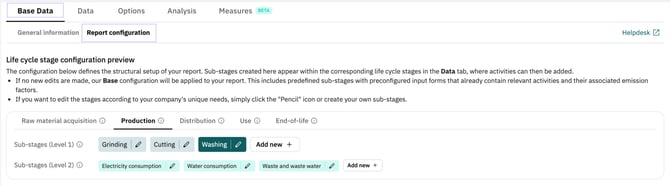
This structure is automatically transferred to the Data tab and forms the basis for entering activities.
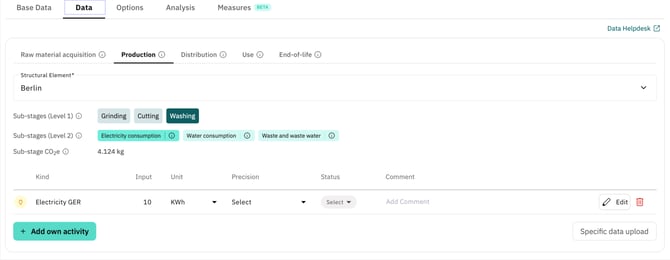
Note: Only users with the Administrator role can view and modify the report configuration. All other users work in the Data tab with the structure that has been set up.
How is it configured?
Base configuration
When creating a new report, a basic configuration is automatically stored. It contains preconfigured sub-stages and is ready for immediate use.
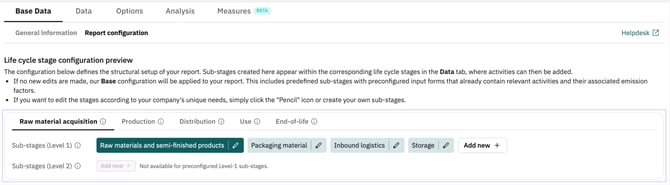
Creating individual sub-stages
New sub-stages can be created using the ‘Add new’ button. A distinction is made between sub-stages at level 1 and sub-stages at level 2.

Sub-stages at level 1 define the main structure within a life cycle stage. Either preconfigured sub-stages can be used, which already contain predefined activities and associated emission factors. This is particularly helpful at the beginning of data collection. Alternatively, individual sub-stages can be used, which can be freely named and map company-specific process steps.
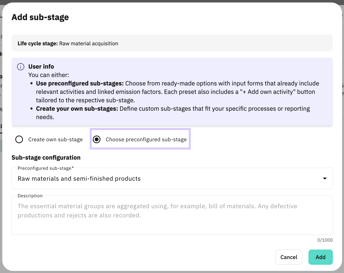
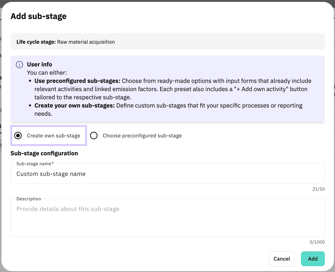
Clicking on ‘Add’ creates the new sub-stage both in the report configuration in the base data and in the Data tab.
Sub-stages at level 2 provide an additional level of detail within a sub-stage. They can only be created within individual sub-stage (level 1) and enable more precise structuring of complex processes or data entries. When creating sub-stages at level 2, you can also choose between predefined and individual sub-stages.
Note: No further sub-stages at level 2 can be added to preconfigured sub-stages at level 1.
If you add sub-phases even though activities already exist at the phase level, these will automatically be assigned to the newly created sub-stage. This automatic assignment cannot be undone. Subsequent relocation is then only possible via CSV download and upload.
Editing or deleting sub-stages
Both editing and deleting sub-stages is done via the pencil icon.

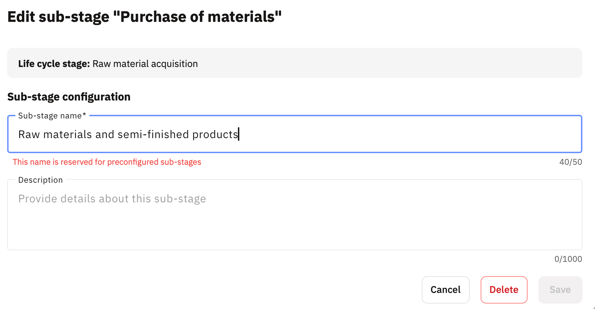
Individual sub-stages can be renamed or deleted at any time. Their description can also be added, modified, or removed at any time. However, it is not possible to switch to a preconfigured sub-stage.
Preconfigured sub-stages cannot be renamed, but their description can be edited at any time. A default description is already provided and can be replaced if needed. Preconfigured sub-stages can also be deleted.
Note: When you delete a sub-stage, all activities contained within it are completely deleted. If a sub-stage at level 1 is deleted, all associated sub-stages at level 2 are also deleted. This process cannot be undone. It is therefore recommended that you complete the sub-stage structure before entering the activity data.
The system will display a warning message before deletion to remind you of this.
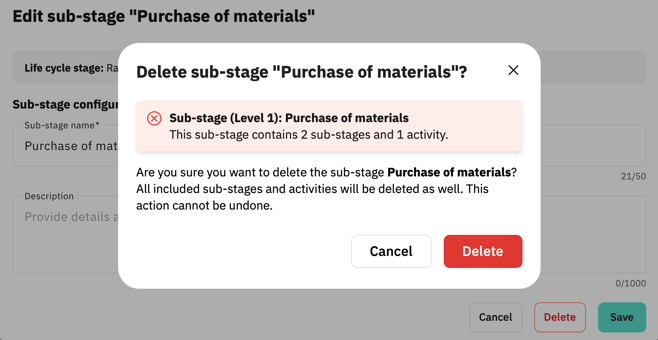
Reset to base configuration
The report configuration can be reset to the base configuration at any time. This action removes the currently defined structure of sub-stages (Level 1 and Level 2) and replaces it with the default base configuration.
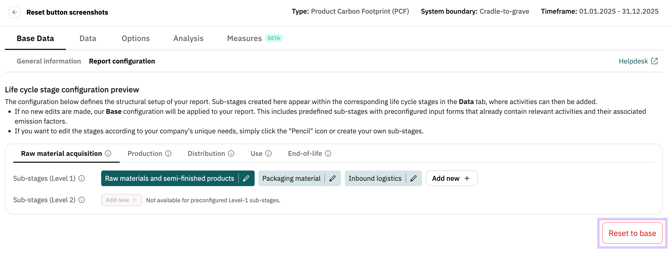
Clicking the ‘Reset to base’ button opens a dialog. There, all custom sub-stages can be removed and the default structure can be restored in one step.
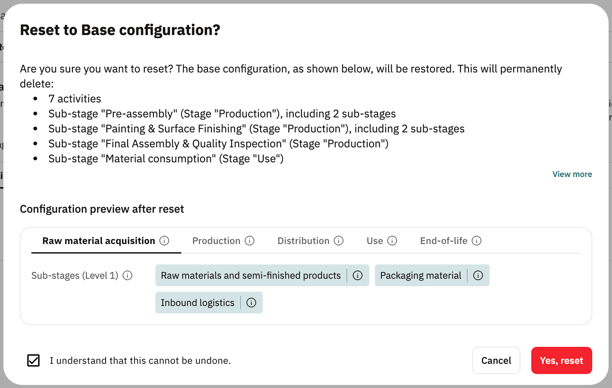
To proceed with the reset, confirmation via the checkbox in the bottom left is required.
Note:
Resetting to the base configuration will permanently delete all custom sub-stages as well as all subordinate sub-stages and activities contained within them. This action cannot be undone.
Therefore, it is recommended to perform a CSV download of all activities before resetting the configuration if the data may be needed again later.
Rules for naming and structure:
-
The name of a custom sub-stage must be unique within the life cycle stage.
-
A name cannot be used if a preconfigured sub-stage with the same name already exists.
-
Structural changes become effective immediately in the Data tab.
If these rules are violated, an error message appears and the new sub-phase cannot be saved.