![VERSO_Logo-1.png]](https://helpdesk.verso.de/hs-fs/hubfs/Globale%20Design-Elemente/VERSO_Logo-1.png?height=50&name=VERSO_Logo-1.png)
With the introduction of the Emission factors tab, Climate Hub automatically converted your existing individual activities into emission factors in a one-time process. This means you don’t need to create anything from scratch and can start working with a consistent data basis right away. This article explains what happened during the initialization and what you should check now.
What was migrated?
The initialization was performed once for your entire organization. All individual activities from all CCF reports were included, including completed reports and all organizational units:
- Scope 1: individual activities, including energy balance information (ESRS E1-5)
- Scope 2: individual activities, including energy balance information (ESRS E1-5)
- Scope 3: individual activities
Activities from the databases (activity-based or spend-based) and activities pre-filled by Climate Hub were not included. Each scope was compared separately.
You can identify all factors created during this process by the abbreviation "CH" in the Created by column of the version history. The creation date shown is the date of initialization.
What you see in the Emission Factors tab
| Result | How to identify it | What you should do |
|---|---|---|
| One factor created from a single activity | Light blue tag showing "1 activity" | Briefly review and hide the tag |
| One factor created from multiple identical activities | Light blue tag showing “n activities” | Briefly review and hide the tag |
| One factor with multiple versions | Light blue tag and multiple entries in the version history | Briefly review and hide the tag |
| Potential duplicates | Yellow tag and yellow border | Resolve the duplicates |
As long as factors with tags remain, an information box in the corresponding color appears at the top of the tab. It disappears once no tags of that color remain.
How activities were converted into factors
Climate Hub compared all activity details, such as the factor value, unit, source, system boundary, region, source year, and breakdown of gases. The outcome determines how the factors are created:
- All details are identical: The activities share a single factor. It receives a light blue tag showing the number of activities.
- Only the source year differs: A single factor is created with multiple versions, sorted by year. The most recent version is marked as “Active,” while older versions are marked as “Replaced.” If no year is specified, this entry is treated as the oldest version. These factors also receive a light blue tag.
- The year is the same, but exactly one value differs slightly: This may indicate a typo, such as 1.50 instead of 1.05, or a convertible unit, such as kg and t. Separate factors are created, linked as potential duplicates, and highlighted in yellow.
- Key details differ (e.g. source, system boundary, region, or energy source): Separate factors are created without a tag.
How factor names were assigned
The factor name is taken from the “Name of from source” field. If this field is empty, the activity name is used instead and entered into that field.
If multiple activities are merged into one factor, the activity from the most recent report is used, based on the start date of the reporting period. Within the report, activities are searched from the top-level organizational unit downward.
Since each factor name must be unique, a sequential number is added when names are identical, e.g. “DEFRA Paper (2).” You can rename each initialized factor once (see below).
Reviewing merged factors (light blue tag)

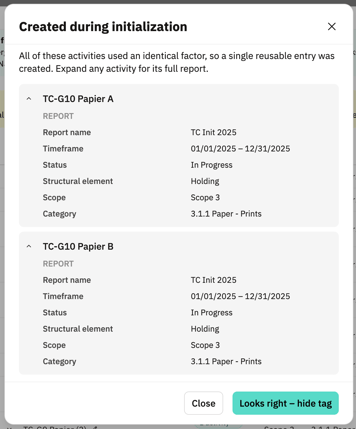
The light blue “Initialization completed” information box shows how many factors were created from how many activities. The tag in each row indicates how many activities use that factor.
- Click the light blue tag in the row.
- The “Created during initialization” window lists all activities, including their descriptions, reports, reporting periods, statuses, organizational units, scopes, and categories. Expand an activity to view all its report details.
- Check whether the activities genuinely belong together.
- Choose one of the following options:
- Close if you want to review the activities later. The tag remains visible.
- Everything is correct – hide tag if everything is correct. The tag is permanently hidden for all users in your organization.
Hiding a tag cannot be undone. It does not change the factor itself.
Resolving potential duplicates (yellow tag)

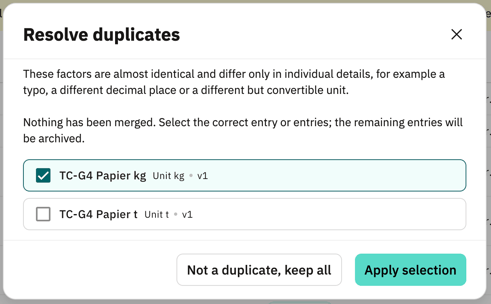
The yellow information box indicates how many factors have been marked as potential duplicates. Each of these factors has its own row with a yellow tag. Use the Show duplicates only toggle to hide all other factors.
- In a highlighted row, click the yellow tag to open the Resolve duplicates window. It displays all entries in the group.
- For each entry, you can see the activity description and only the detail that differs between the entries.
- Decide which option to use:
- Select the correct entries and click “Apply selection”: The selected factors are retained, and all other factors in the group are deleted. The button becomes active once at least one entry has been selected.
- “Not duplicates, keep all”: All factors are retained.
In both cases, the yellow tag disappears.
Important: Deleted factors cannot be restored. Your reports will not change as a result: activities that used a deleted factor will continue to calculate emissions using their previous values. You can assign a different factor to an activity using Add emission factor, for example, the entry you chose to keep.
Renaming a factor once

Automatically assigned names may not always be suitable. You can therefore rename each initialized factor once:
- Click the pencil icon in the Factor name column.
- Enter the new name and save it. The name must be unique.
The pencil icon then disappears. The new name appears everywhere the factor is used. Activity descriptions in your reports remain unchanged. Factors you create yourself after initialization do not have a pencil icon.
What changes in your reports?
The values do not change. Each activity remains linked to the factor and version that correspond to its previous details. All emissions remain unchanged.
Editing does change. Factor details are now managed centrally in the Emission factors tab. In a custom activity, you can therefore only edit the name, the input with unit and the data quality check. To change factor values, create a new version in the Emission factors tab.
This also applies to new activities. If you create a new activity in a report and enter factor values, an emission factor is automatically created in the Emission factors tab when you save. From then on, you edit the factor values there only.
Note: Activities in initialized reports are not linked to an emission factor in the Emission factors tab at first. You can therefore still edit all details, including the factor. When you save, a new emission factor is automatically created in the Emission factors tab and linked to the activity. From then on, you edit the factor values there only.
Newer versions are offered. If your activities resulted in a factor with multiple versions, older reports will continue to use the older version. When you check those reports for updates, the newer version will be offered to you. You decide whether to adopt it.
Frequently asked questions
Do I need to do anything about the tags? No, the factors are ready to use immediately. However, we recommend briefly reviewing merged factors and resolving potential duplicates. This helps keep your Emission Factors tab organized.
Why is a factor named “… (2)”? Multiple factors would otherwise have had the same name. Rename the factor once or resolve the duplicate group.
Can I show a hidden tag again? No. However, the origin of a factor remains traceable, for example through the abbreviation “CH” in the version history.
Can I delete a factor created during initialization? Yes, provided it is no longer used in any report, including completed reports. Potential duplicates are an exception: you can delete these when resolving the group, even if they are used in reports. If you no longer want a factor to appear in the overview but it is still used in reports, you can archive it. It will no longer be available for selection in new reports, while existing reports will continue to calculate emissions unchanged. You can use the status filter to show archived factors again at any time.
Will initialization be repeated? No. Initialization takes place only once. After that, you can create new factors in the Emission Factors tab or by selecting Add own activity in a report.