![VERSO_Logo-1.png]](https://helpdesk.verso.de/hs-fs/hubfs/Globale%20Design-Elemente/VERSO_Logo-1.png?height=50&name=VERSO_Logo-1.png)
The Accounting tab in the left navigation bar contains the Reports sub-tab. Here you can create new reports for calculating the emissions of a LCA and view and edit existing reports.
Report overview

The first column of the overview shows the title of each report. To the right of this is the report type. In addition to Life Cycle Assessments (LCA), reports on Product Carbon Footprints (PCF), Corporate Carbon Footprints (CCF) or Event Carbon Footprints (ECF) may also appear here.
The Status column is currently always In Progress for LCA. In future, it will indicate whether the report is still being processed (In Progress) or has already been completed (Published). The From and To columns indicate the period during which the input data for the product was collected and accounted for. The CO2e (Total) column is not filled in the LCA, as a Life Cycle Assessment includes multiple impact indicators and CO2e is only one of them. Displaying only CO2e would therefore present the results in an incomplete way. The last two columns show who last modified the report and when the change was made.
Filter functions
To search for specific reports, the checkboxes can be used to select from four report types (CCF, PCF, ECF, LCA). In addition. the filters Status and Year are available. With the Status filter, you can search for reports that are In Progress. The options In Review, Finished or Published currently exist only in the CCF. The Year filter allows you to narrow down the reporting period by either double-clicking on a year in the annual overview or selecting two different years. Once the filters have been set, only reports that match the selected criteria will be displayed.
Create a new report
A new LCA report can be created in two ways:
1) Via the report overview
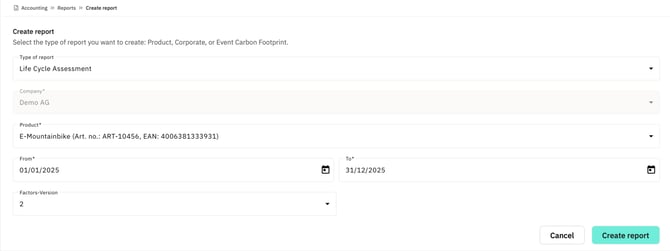
To create a new report, first click on the plus button at the end of the table. Select the Life Cycle Assessment option in the Report Type field. The company name is filled in automatically. Then select a previously recorded product from the product list under Product and define the desired reference period within which the input data for the product is to be recorded and used for balancing. Click on the Create button to create the report, which will appear directly in the report overview.
2) Directly from the product list
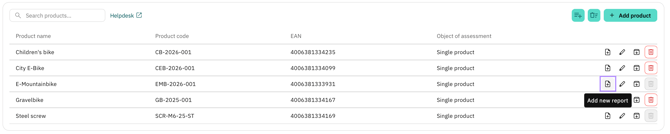
Alternatively, a new PCF report can also be created directly from the product list. To do so, click the Add new report button in the respective product row. You will then be taken directly to the input screen for creating a new report. The selected product is already prefilled. You need to switch to Life Cycle Assessment in the report type. This allows new reports to be created faster and with fewer manual inputs.