![VERSO_Logo-1.png]](https://helpdesk.verso.de/hs-fs/hubfs/Globale%20Design-Elemente/VERSO_Logo-1.png?height=50&name=VERSO_Logo-1.png)
Under the ‘Collect’ menu item, you will be prompted to enter the specific data and information required for each data point. The information to be provided depends both on the standard you selected when creating your SETs under ‘Configure’, and on the key topics you chose under ‘Prepare’.
In any case, please ensure that you have fully selected the SET to be reported on and the key topics before you begin data collection.
Data collection is divided into ‘General’, ‘Environment’, ‘Social’ and ‘Governance’ data points.
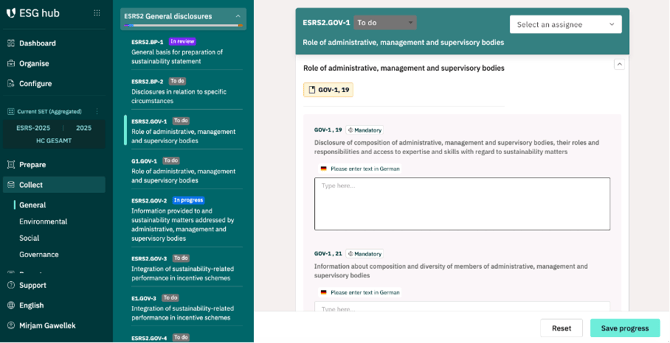
Accordingly, you can simply work your way through the sections from top to bottom and assign the task of filling in the required information to one or more people. For each section and each individual data point, you can select a designated person from the drop-down list in the top right-hand corner under „select an assignee“.
This person will then also appear on your dashboard. This makes it possible, for example, to assign all environmental data points to your environmental officer so that you can work together on data collection. Please proceed section by section or data point by data point.
Selecting a an assignee for data collection for data point ESRS2.GOV1
Please note: You can only select people as assignees whom you have previously added as ‘Users’ in the ‘Organise’ section. Please check this if you cannot find the person in question in the list.
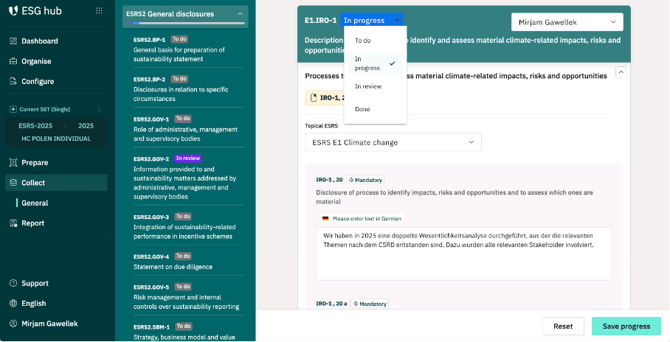
In addition, you or the assigned person can track the status of a data point by using the drop-down menu at the top of the data point, which offers the options ‘Open’, ‘In progress’, ‘Under review’ or ‘Completed’. By definition, all data points are marked as ‘Open’ before they are edited for the first time.
Data collection: Tracking status
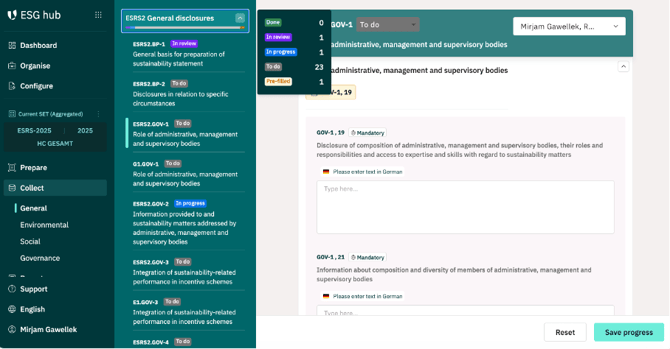
You can get a rough overview of how many data points have which status here by clicking on the small arrow at the very top of the section. A pop-up window will appear (see screenshot below). The status is also highlighted in colour in the bar below.
Status overview in the ESRS2 General Information section